[Zola] Start Your Own Blog - Build a Project with Zola

Zolais a static site generator, and you write the content inMarkdown. The Zola team says that you can ignore dependency problems, and that Zola is flexible and builds very fast. I picked it because it is written inrustand only after I started did I find out that I do not need to know Rust at all XD. This article gives a rough introduction to how you build a static site quickly. Later articles will cover the detailed settings, some of the concepts, and how you deploy with the officialGithub action. For now I use a slightly roundabout method: I deploy toIPFSthroughfleek. I am still trying to complete the whole CI flow withdocker.
Install Zola
Please read the official installation document. On Windows you need a package manager, either Scoop or Chocolatey. I prefer Chocolatey. If you do not have it yet, open PowerShell and enter the install command:
$ Set-ExecutionPolicy Bypass -Scope Process -Force; [System.Net.ServicePointManager]::SecurityProtocol = [System.Net.ServicePointManager]::SecurityProtocol -bor 3072; iex ((New-Object System.Net.WebClient).DownloadString('https://community.chocolatey.org/install.ps1'))After the installation finishes, enter this command.
$ choco install zolaInitialize a Zola Project
In PowerShell, move to the folder that will hold the project. I recommend that you set up Git first, because this affects how you apply a theme later.
$ git initInitialize the project.
## initialize the project directly
$ zola init
## put the project in a specified folder
$ zola init src
Zola then shows the messages below. You do not have to change these settings unless you have a specific need. If you already know the domain name that you will use, I still recommend that you set it. If you leave it empty, you run into problems easily.
Welcome to Zola!
Please answer a few questions to get started quickly.
Any choices made can be changed by modifying the `config.toml` file later.
// set the domain name
> What is the URL of your site? (https://example.com):
// enable Sass or not
> Do you want to enable Sass compilation? [Y/n]:
// enable syntax highlighting or not
> Do you want to enable syntax highlighting? [y/N]:
// build an index for content search or not
> Do you want to build a search index of the content? [y/N]:
After the command completes, the project is ready. The project structure looks like this.
├── config.toml
├── content
├── sass
├── static
├── templates
└── themes- config.toml : the configuration file for the properties of the project
- content : the real content of the site, which you store here as
.mdfiles - templates : the templates that you set up for the site
- themes : the folder that holds the themes of the site
- sass/static : the folders for static assets
Now you can start the server and preview the site.
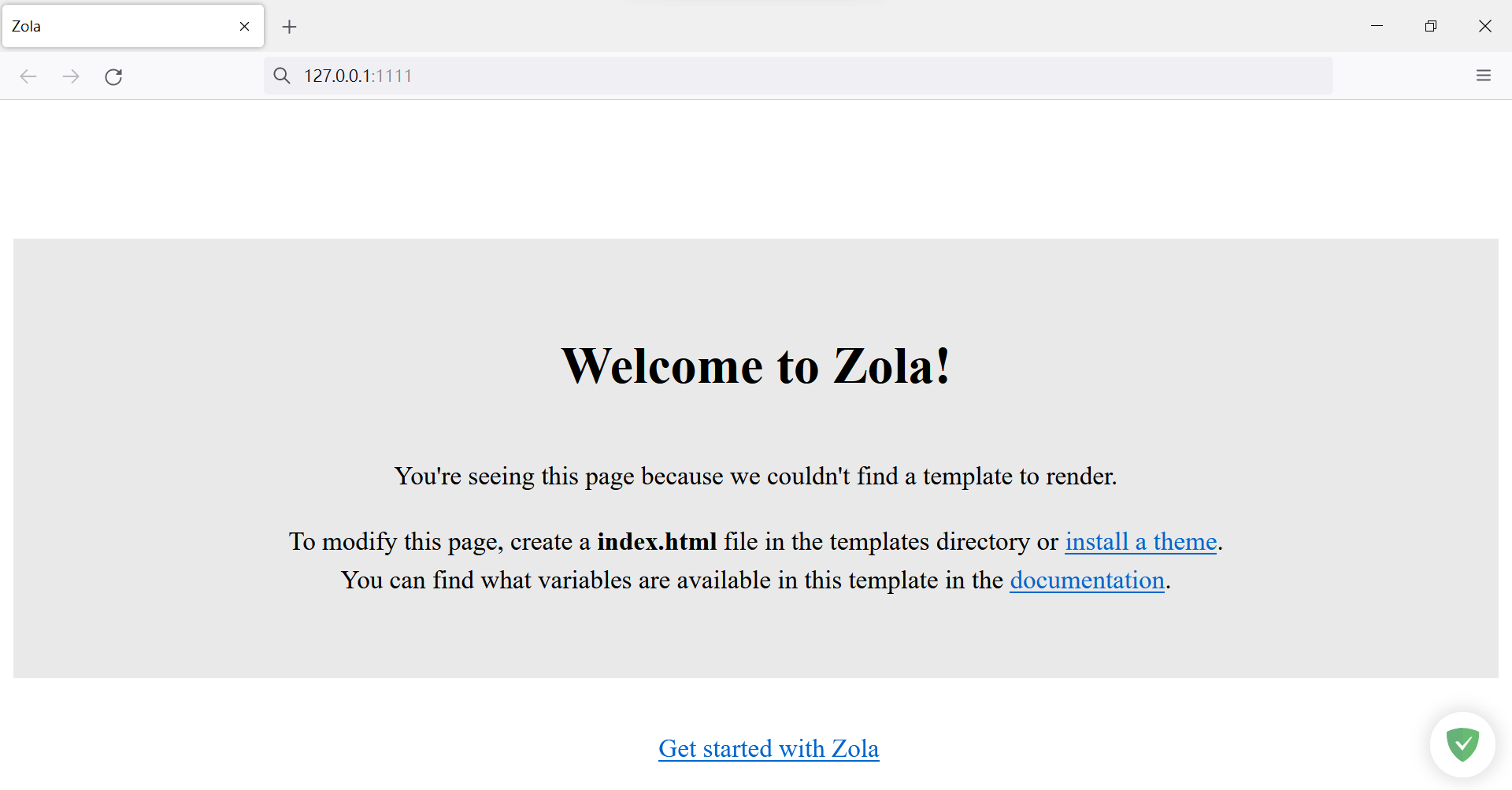
$ zola serveIf you see no other error message, open a browser. The default local address is http://127.0.0.1:1111/. The site has no content yet, so you see an error page.
Apply a Theme
Next you must set up the pages and the templates. Zola manages the templates of the site with Tera, but I will not introduce Tera this time. If you want a quick site that looks the part a scam, apply a theme first. There are not many themes to choose from. I chose tale-zola. Enter the command below in the root folder of the project, the same folder that holds Config.toml.
## git submodule add [url] themes/tale-zola
## [url] is the repository source of the theme
$ $ git submodule add [email protected]:aaranxu/tale-zola.git themes/tale-zola
A submodule adds the theme to the git references of the main project as a subproject. When the theme gets an update, the main project includes it too. If you did not initialize Git at the start, you see this message.
fatal: not a git repository (or any of the parent directories): .gitIf the command succeeds, open config.toml and add theme="tale-zola" to point at the theme that you just downloaded.
// The URL the site will be built for
base_url = "https://example.com"

// the name of the theme
theme="tale-zola"

// the rest is omitted
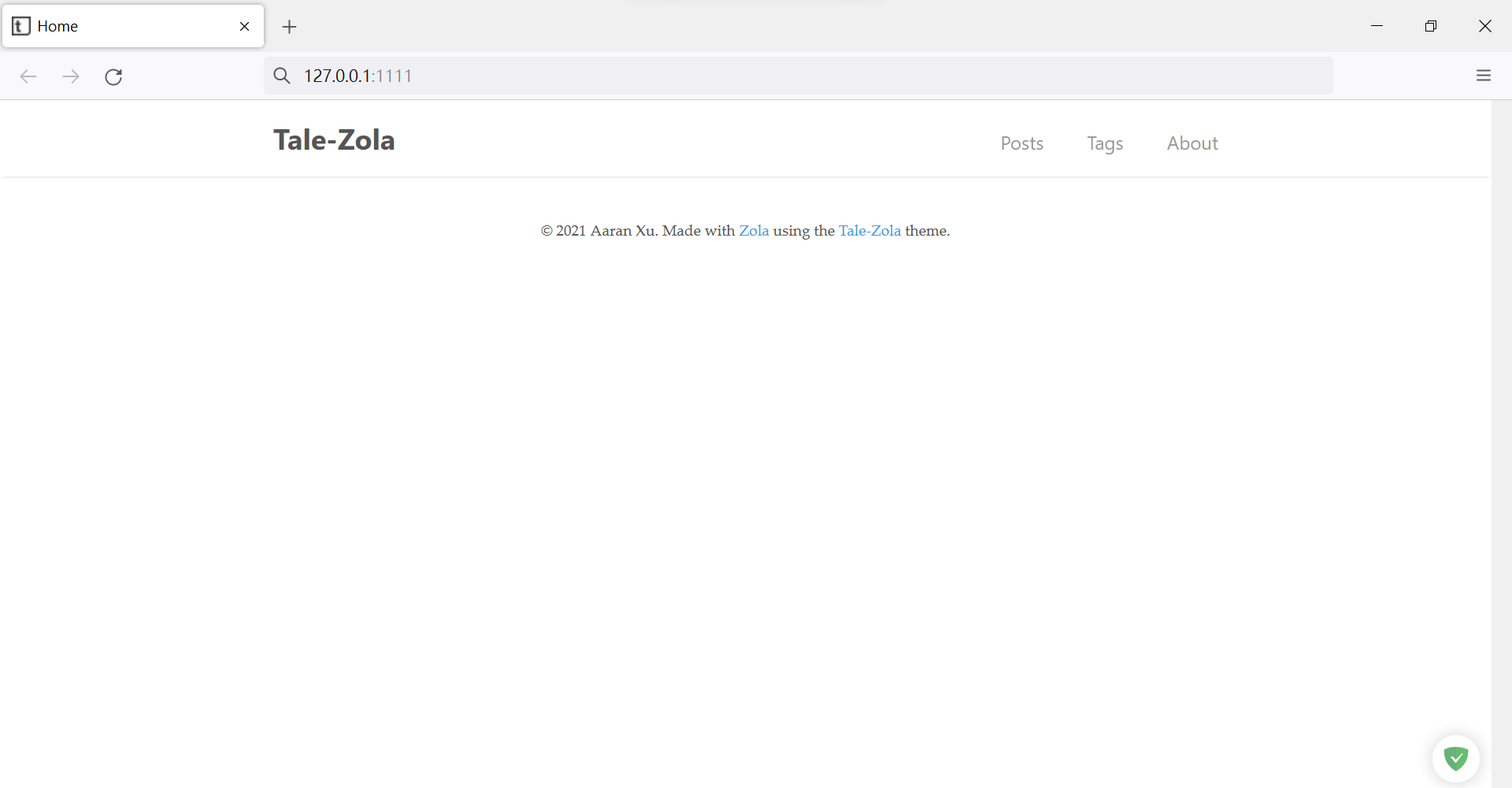
You should now see the site with the theme applied.