[Zola] Set Up a CI Publish Flow with GitHub Action

The site template is up and running. Next I explain how to set up CI that publishes the site automatically with the
GitHub Actionservice. Zola provides an official GitHub Action configuration. Once you apply it, every merge request to the branch that you choose deploys the site.
My previous article covered the basic setup of a zola project. I planned to study the tera template system next, but it turned out to be a rabbit hole... It will probably cost me a lot of time. This time I explain how to build the project and how to set up CI with the official GitHub Action. Plenty of GitHub Action tutorials already exist online, so I keep this part brief.
Zola Build
Start with the static site. You must still build the prepared project to generate the static page files. Run this command.
$ zola buildThe build is now complete. You should see a new folder named public. Zola generates the site very fast. The folder looks roughly like this.
├── assets
├── 404
├── index.html
├── main
├── robots.txt
└── sitemap.xml
That already counts as a successful publish. Open index and you can browse the site on your own computer. But the site is only really published when it lives on a hosting service. A manual build after every new article is also a chore. Luckily Zola provides an official GitHub Action that you can apply. Here is the link
Zola GitHub Action
Many people host static sites on GitHub Pages. GitHub Pages also integrates with the GitHub Action for continuous deployment. The Zola site documents several deployment methods. Besides the GitHub Action, it also has a GitLab example.
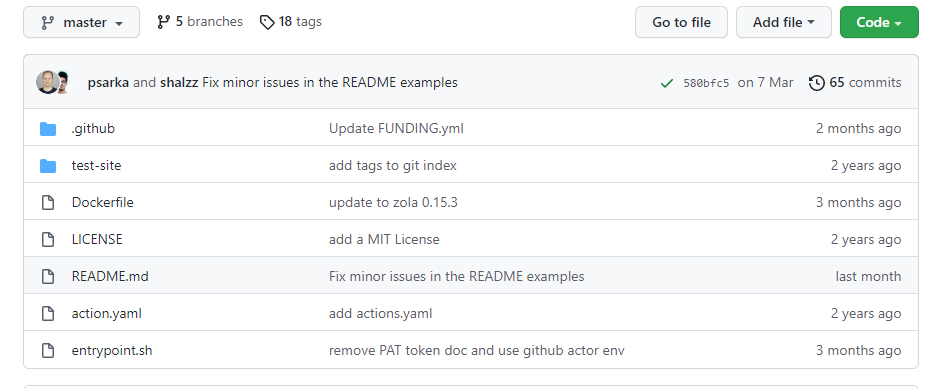
Look at the Dockerfile in the project. You can see that the image builds on debian.
The documentation offers two options:
- Build directly on the
mainbranch. After the build, the action creates agh-pagesbranch and puts the generated static site into it. This option is simple and direct. You then type the address of your personal GitHub page into the address bar, and your blog appears.- Drawback: the repository must be public, so anyone can read the source code of the project. That hardly matters for a personal blog,
but I do not enjoy the feeling of running around naked
- Drawback: the repository must be public, so anyone can read the source code of the project. That hardly matters for a personal blog,
- Create a separate private repository for the source code. In the GitHub Action, deploy to the repository that holds the GitHub page.
Step1 Set Up the Key
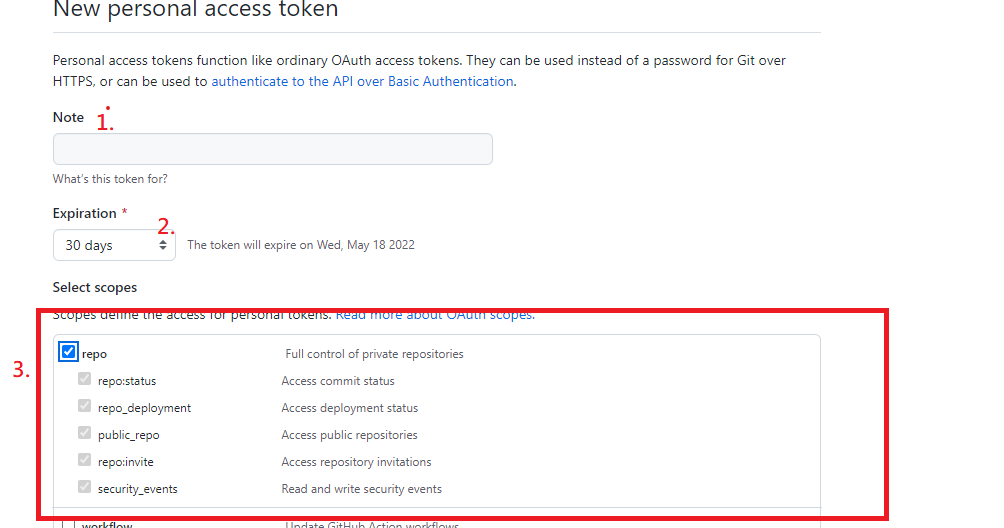
First create a key that grants permission to deploy to the repository. Open setting, select Developer settings at the bottom of the side bar, and go to Personal access tokens.

Give the token a name and set an expiry date or set it to never expire if you feel lazy. Remember to tick the repo checkbox. Then save the token that you created.
Step2 Set Up the Private Repository
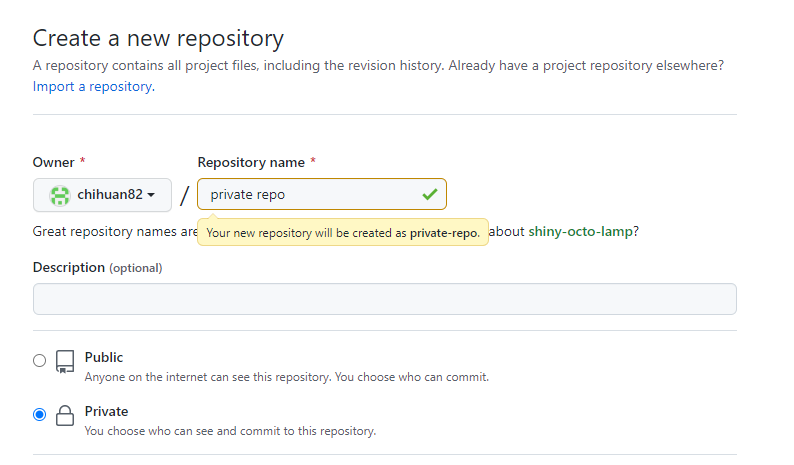
Next create a repository for the source code of the project.
Go to the setting page of the repository and add the token that you created.
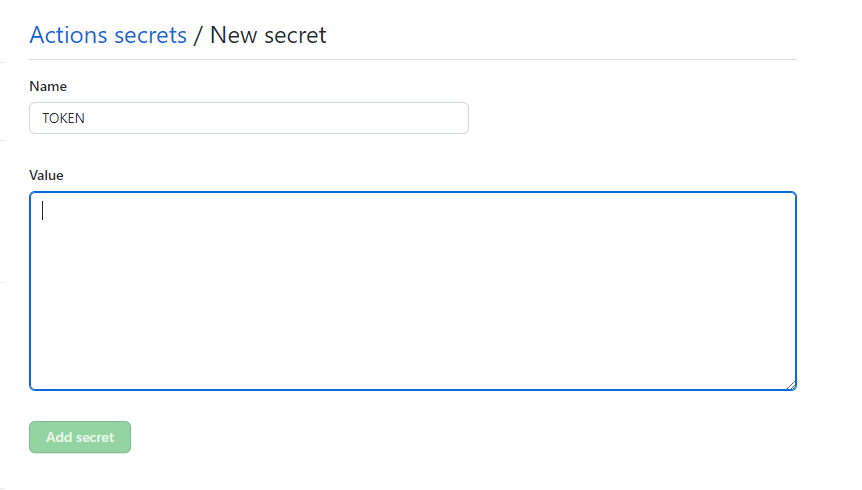
The preparation is now complete.
Step3 Create the Workflow
Next go to the action page and add the configuration.
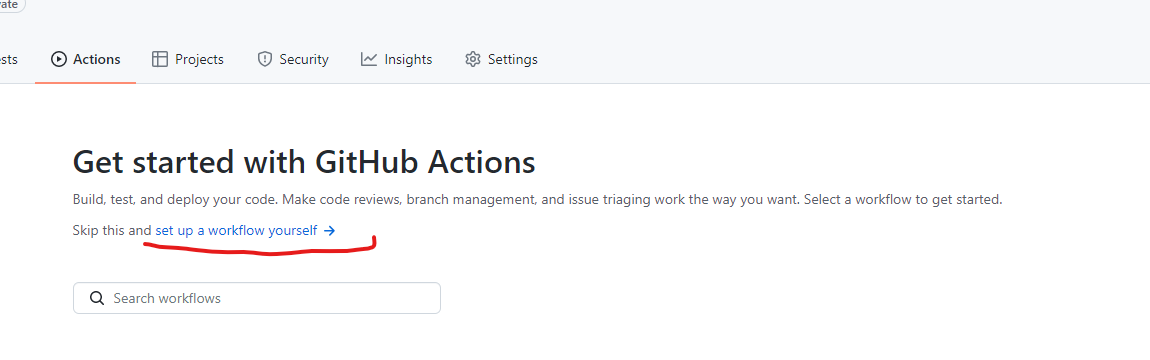
Paste in the official example and make a few small changes.
on: push
jobs:
  build:
    runs-on: ubuntu-latest
    if: github.ref != 'refs/heads/main'
    steps:
      - name: 'checkout'
        uses: actions/checkout@v2
      - name: 'build'
        uses: shalzz/[email protected]
        env:
          PAGES_BRANCH: gh-pages
          BUILD_DIR: .
          TOKEN: ${{ secrets.TOKEN }}
          # BUILD_ONLY: true
  build_and_deploy:
    runs-on: ubuntu-latest
    if: github.ref == 'refs/heads/main'
    steps:
      - name: 'checkout'
        uses: actions/checkout@v2
      - name: 'build and deploy'
        uses: shalzz/[email protected]
        env:
          PAGES_BRANCH: master
          BUILD_DIR: .
          TOKEN: ${{ secrets.PUBLIC_TOKEN }}
          REPOSITORY: username/username.github.io
Here is a short walkthrough. This yaml configuration has two sections. The first section, build, builds the files in the project and puts them on the gh-pages branch.BUILD_DIR takes the location of the project that you want to build. The default . is the root directory of the repository. If the project sits in a folder, put the name of the folder here.
For TOKEN, remember to replace TOKEN with the name of the token that you created.
The second section takes the files from the first build and puts them in the repository for the GitHub page. The example uses the master branch. Change it to main if you prefer.
Finally, remember to replace username with your own username.
The documentation is quite clear about the other options too. Take BUILD_THEMES. If you still remember the git submodule from last time, you can set this option so that every deployment applies the newest version of the theme.
Step4 git push
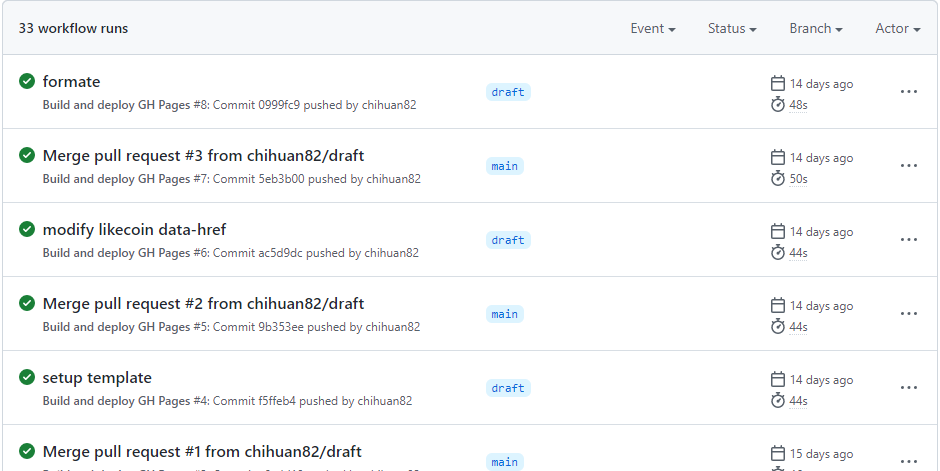
From now on, every merge into main triggers a deployment. Wait for the deployment to finish and you can see the updated content of the site.